
SSH usage simplified

Pavan
Hi guys👋. If you’ve worked with servers you might already used SSH. In this blog I’ll share a tool which simplifies your SSH usage.

Chimtu
SSH
- For those who don’t know, SSH (Secure Shell) is a protocol.
- It is used to securely connect to remote server or device over a network and access resources, execute commands on them.
Pavan
VSCode
What if i told you that you can use VSCode as SSH client?- Yes, you can use VSCode as SSH client.
- You can edit files, run commands, and manage your server directly from VSCode.
Installation
-
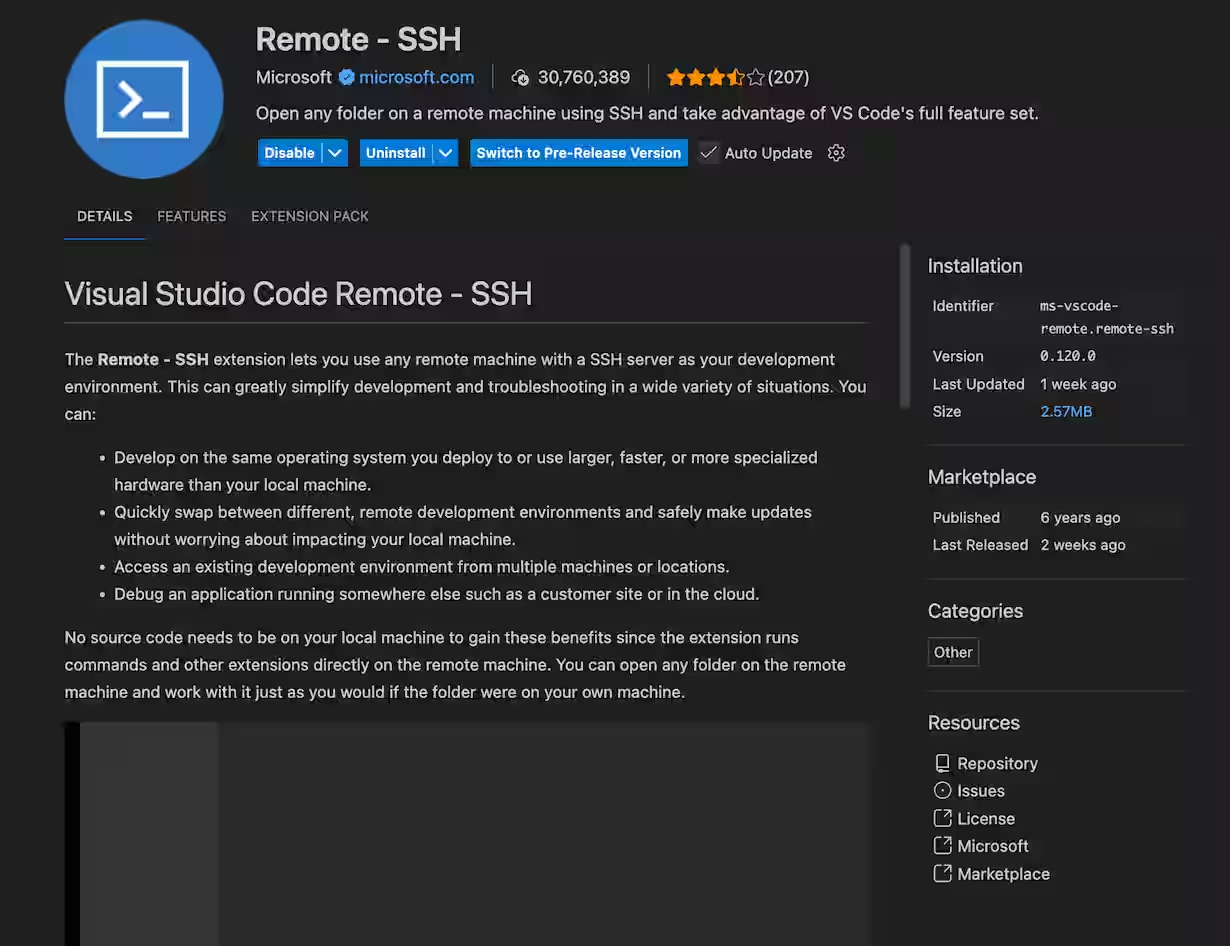
Install Remote - SSH Extension from VSCode Marketplace.
-
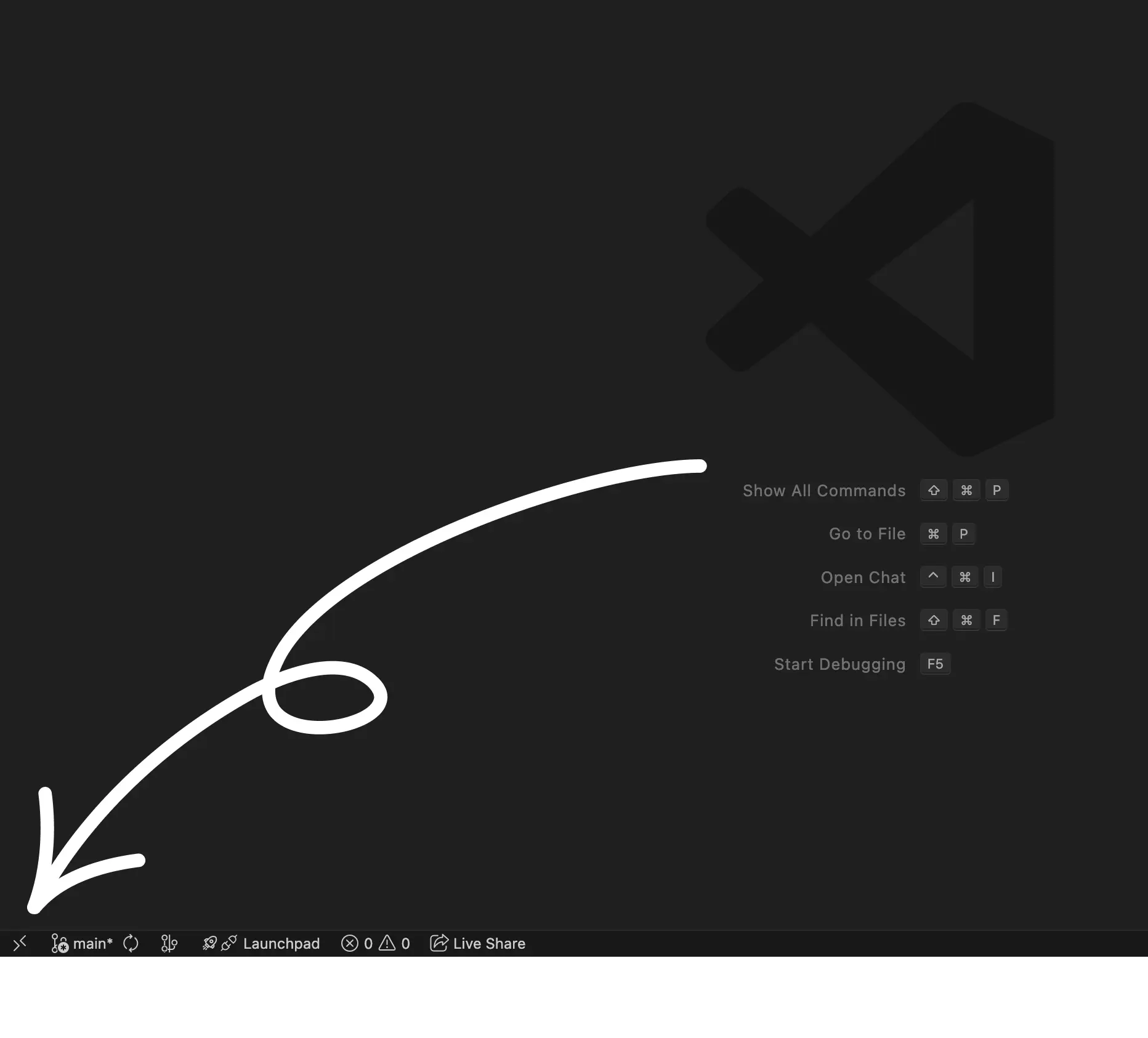
After installation, click on the icon bottom-left corner.
-
Click
Connect to Hostoption, selectConfigure SSH Hostsand select your SSH config file ex: /Users/john-deo/.ssh/config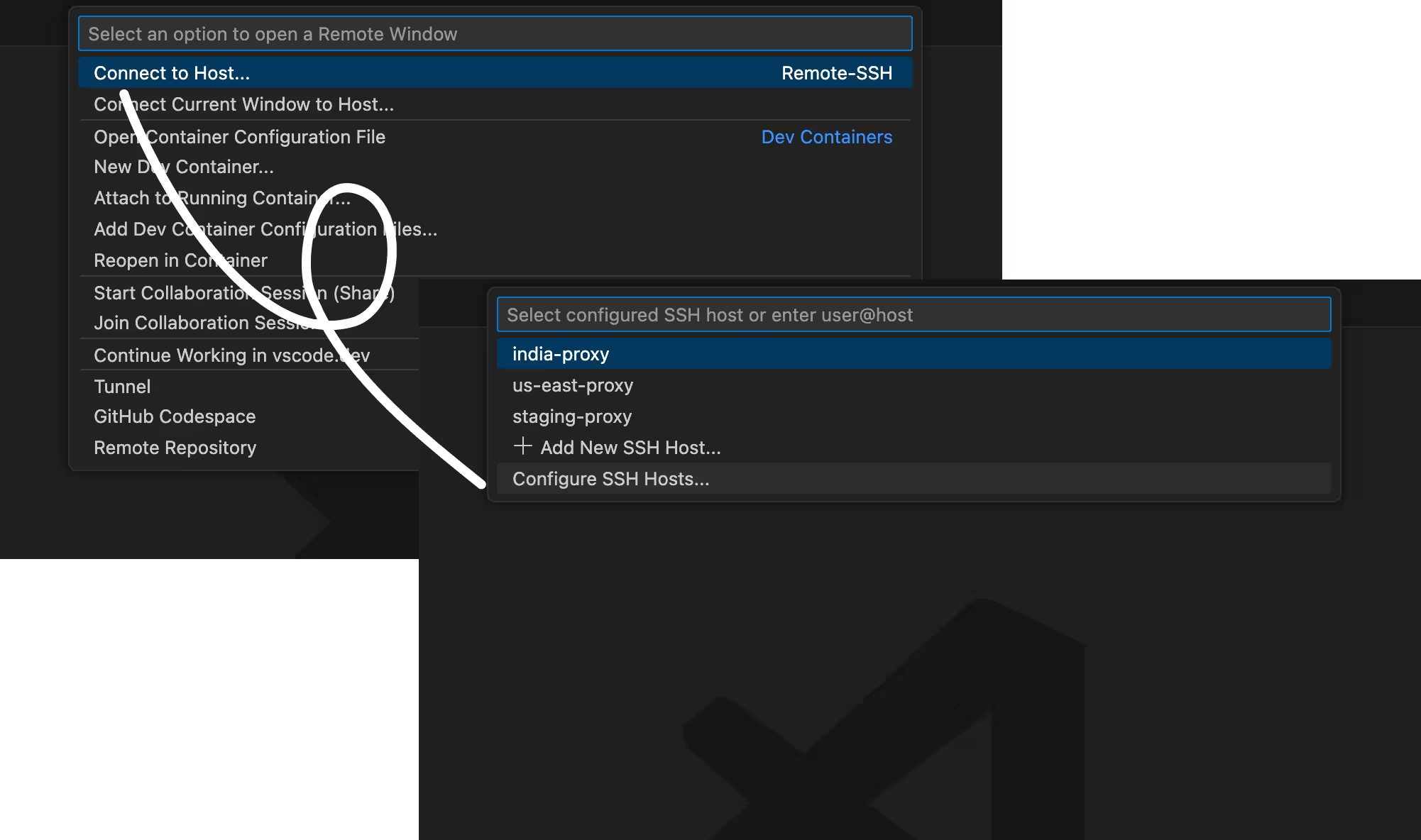
-
Add your server connection details in the config file in this format:
Host server-name
    HostName 145.85.249.68
User root- Now again click on the icon bottom-left corner.
- Select
Connect to Hostand select your server.
- Select
- VSCode now opens a new window and connects to your server.
- If password is enabled, it will prompt you to enter the password. If you use SSH key authentication, it’ll connect directly using that key.
- Once connected, you can do all operations directly from VSCode.
In background VSCode runs a nodejs server on the remote machine to facilitate this connection.
Chimtu
A GUI can be really helpful it’ll save lot of time.
- No need for
cd,ls,catcommands anymore.
Pavan
Another advantage is you get split terminal with SSH session.
- You can run multiple commands in parallel.
- Here’s a youtube tutorial on how to use Remote-SSH extension: YouTube Tutorial
Chimtu
Wow! haven’t expected that. That’s it for today guys, see you in next blog✌️.